← Exercise Prescription · Home · Site Configuration →
Systole supports importing data from Breeze CPET software,
BreezeSuite MedGraphics SQL Server, and its own .pedal
format, and exports to REDCap CSV and .pedal files.
From the Records sub-tab bar, click Import and select one or more files. Supported formats:
| Format | Source | Extension |
|---|---|---|
| Breeze | Breeze CPET software | .sum |
| Systole | Systole application | .pedal (v3.0, v4.0, or v5.0) |
When importing a file, Systole:
If a MedGraphics SQL Server connection has been configured (Settings → MedGraphics Connection), a MedGraphics button appears on the Records sub-tab bar between Import and + New Test. Click it to:
45496181 and
045496181 both match)smith, smith, j, john smith);
case-insensitive contains-match across PatientFirstName and
PatientLastName, multi-token AND, top 50 results sorted by
visit dateSystole pulls the test directly from MedGraphics and saves it to the local database, including any breath-by-breath data. Tests imported this way default to Preliminary status and Review duplicate handling. Summary values (Rest / AT / Peak) are auto-computed from the BxB data when the source record doesn't already have them.
When you import a single test and it imports cleanly, the picker closes and the test opens straight in the Exercise tab — no extra click, no hunting for it in Records. If you import several tests at once (or any are queued for review, skipped, or error out), the picker shows a results summary instead and you close it when you're done.
The picker's Status column tells you, at a glance, whether each listed test is already in your local database:
After you import a recent test, Systole scans that patient's full MedGraphics history and — if there's anything worth adding — opens a follow-up dialog offering two checklists:
Every item is checked by default; uncheck anything you don't want, then click Import Selected (or Skip to dismiss). The dialog doesn't appear when the patient has no additional tests to offer.
You can trigger the same scan directly, without first importing a recent test:
Either button searches BreezeSuite for the patient (by MRN, falling back to name) and opens the follow-up dialog described above. Use this to backfill a known patient's historical visits or retrieve missing breath-by-breath data without re-typing their MRN. If nothing new is found, a brief message says so; the trend charts refresh automatically after any import.
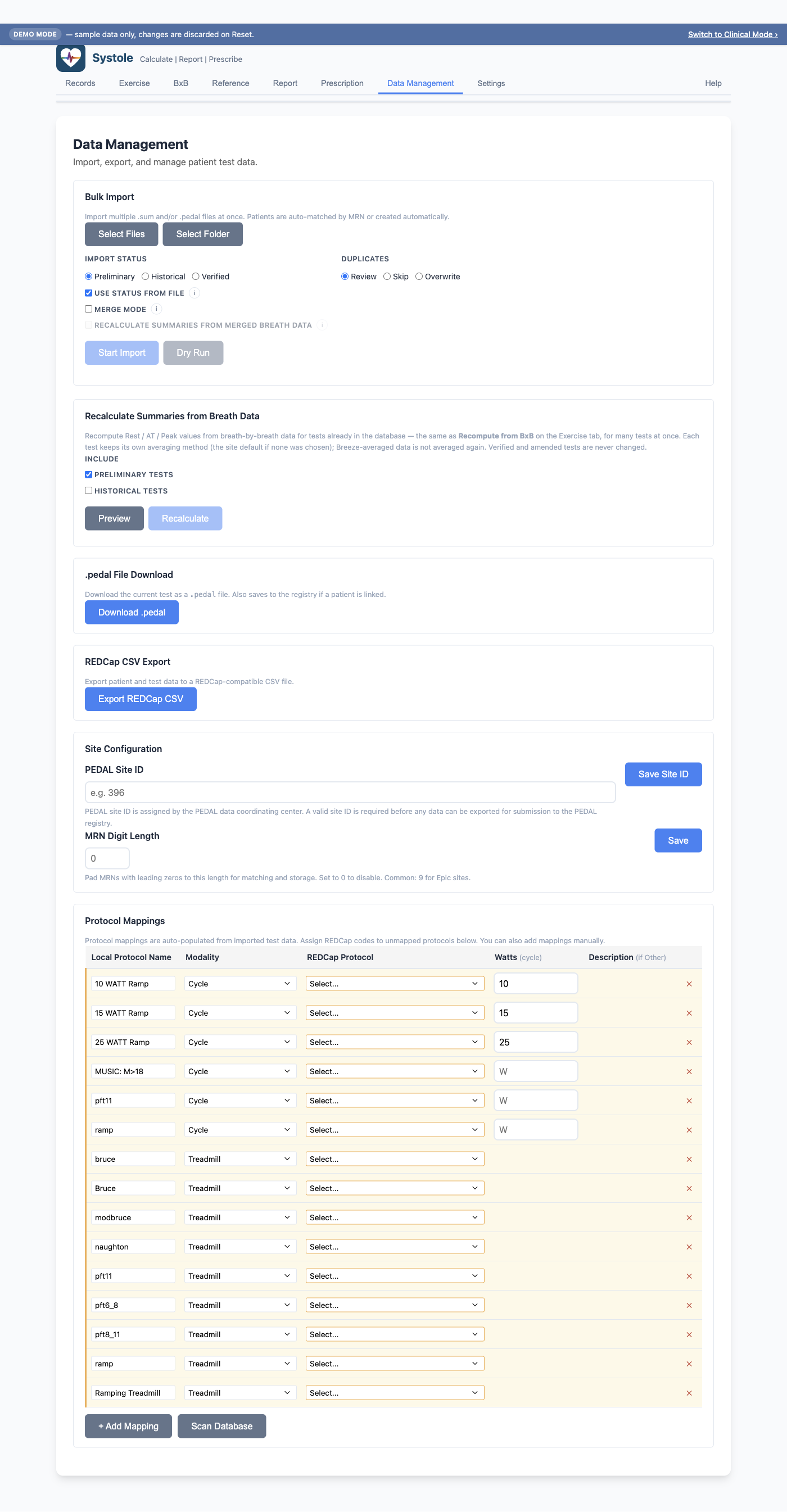
For importing many tests at once (e.g., migrating from a legacy database):
| Option | Choices | Description |
|---|---|---|
| Import Status | Preliminary / Historical / Verified | How to classify imported tests. Preliminary for new data (default), Historical for legacy data, Verified for finalized tests. |
| Use status from file | Checkbox (on by default) | When checked, the status stored in the source file (if any) takes precedence over the dropdown. Click the i button next to the checkbox for details. |
| Duplicate Handling | Review / Skip / Overwrite | What to do when a test appears to match an existing record. Review sends it to the Review queue. Skip ignores it. Overwrite replaces the existing test — except a verified test, which always goes to the Review queue instead (see below). |
| Merge Mode | On / Off | When enabled, additively merges supplemental data (BxB, PFT, observed fields, metadata) into existing tests without overwriting clinical data or verification status. Matches by GUID first, then patient MRN + date of service. Click the i button next to Merge Mode for details. |
| Recalculate summaries from merged breath data | On / Off (off by default; available with Merge Mode) | When a merge adds or replaces breath-by-breath data on a Preliminary or Historical test, recalculates its Rest / AT / Peak values from the breaths, as Recompute from BxB would. Verified and amended tests are never recalculated. |
A verified test's values change only through an amendment, one test at a time, with a reason. Bulk import never does that for you:
The results box reports Breath data added to verified tests and Verified tests sent to Review, so neither happens silently.
In depth: Bulk Import in Depth covers every merge rule, what happens to verified tests, and a situation-by-situation reference table.
Recalculates Rest / AT / Peak from breath-by-breath data for many tests already in the database — Recompute from BxB for each one. Choose Preliminary and/or Historical, click Preview to see every test and value that would change (nothing is changed), then Recalculate N tests. Verified and amended tests are never included; each test keeps its own averaging method, and Breeze-averaged data is not averaged again. Details: Bulk Import in Depth → Recalculate summaries.
If bulk import flags ambiguous matches or duplicates, they appear in the Records Review sub-tab. For each item:
Patient match conflicts — The imported test's MRN or name partially matches an existing patient. Options:
Duplicate tests — The imported test appears to be a repeat of an existing test (same patient, same date). Options:
Merge (add breath-by-breath and PFT data without overwriting clinical values) is offered when you Link a patient-match item that turns out to be a duplicate of an existing test, rather than as a button on the duplicate row. To merge a whole folder, use Merge Mode in Bulk Import instead.
Click the expand arrow on any review item to see a side-by-side comparison of the imported data and the existing record.
The most common patient match conflict is a spelling variant — the same MRN and date of birth, one letter off in the name. Clicking Link asks which spelling is current before it merges; the one you don't choose is kept as a searchable alias, so neither is lost. Cancelling the dialog leaves the item in the queue rather than merging it.
Full walkthrough, including what happens to a patient's already-verified tests: Patient Records → Choosing which spelling is correct.
The same prompt appears outside bulk import — if you save or download a test that isn't yet linked to a patient, Systole looks for a match and shows the Similar Patients Found dialog. Choosing Link there runs the identical name check, and cancelling returns you to the patient list instead of completing the save.
From the Data Management tab, click Download
.pedal to export the currently loaded test. The
.pedal file contains:
.pedal files can be shared with other Systole sites or
re-imported later. They serve as a complete, self-contained record of a
single exercise test.
Version selection on export is automatic:
bxb and pft top-level
sections).Following the export process end to end? See Exporting to REDCap — Step by Step for the prerequisites-first walkthrough (Site ID, protocol mappings, the export → confirm handshake, and troubleshooting). The sections below are the field-level reference.
The REDCap export generates a CSV formatted for direct upload to your
PEDAL Network Data Registry REDCap project. The PEDAL registry is a
single flat form (est_data_rptevents):
one CSV row is one exercise test, and each row carries
that test's patient demographics repeated alongside its CPET values.
There are no separate patient/test arms.
Use the quick-select buttons at the top of the export dialog to build your selection, then refine it by ticking individual patients or tests in the table:
| Button | Selects |
|---|---|
| Unexported | Every test not yet confirmed-exported (the normal workflow — new data since your last upload) |
| All | Every test in the database (initial upload or full re-synchronization) |
| None | Clears the selection |
| Current Test | Only the test currently loaded in the app (including an unsaved one) |
| Needs Re-Export | Already-uploaded tests whose registry row no longer matches what Systole would build today (see Keeping REDCap in step) |
Status gates — three categories of test status are gated independently:
| Status | Default | Gate |
|---|---|---|
| Verified | Always exports | (none — unconditional) |
| Preliminary / Amended | Excluded | Include unverified tests checkbox |
| Historical | Excluded | Include historical tests checkbox |
Verified tests always export. The two checkboxes are independent — you can include historical without preliminary/amended, or vice versa, or both. Your choices persist between sessions, so a site mid-migration can leave Include historical tests on without re-checking it on every export. Tests subject to the unverified gate show a yellow Unverified pill in the export table; historical tests show a purple Historical pill.
Each row's REDCap record_id is
SITE-PEDALID-VISIT (e.g. 396-4567-1):
-1, -2, …)The row also carries patient_id
(SITE-PEDALID, the per-patient key) and
site_code (the numeric site ID alone).
These are generated automatically — you never type them.
Downloading the CSV marks the included records as pending (not yet confirmed). After you have successfully imported the CSV into REDCap, reopen the export dialog and click Confirm in the banner at the top; this promotes the pending records to exported so future Unexported selections skip them. If a REDCap import failed, click Reject instead to return the records to unexported. Starting a new export while a batch is still pending prompts you to confirm the previous one first.
Exported tests show a green indicator in the Records Tests table.
If you reassign an already-exported test to a
different patient (see Patient
Records → Admin Mode), its old REDCap record can no longer be
reached — a CSV import cannot delete a REDCap record. Systole handles
this automatically: your next export includes a
superseded-record row that flags the old
record_id (with record_status = 2,
Superseded) so your PEDAL registry coordinator can find and
remove the orphaned record. These rows are counted in the pending banner
as superseded records and follow the same Confirm/Reject flow.
You don't create them by hand — reassigning a confirmed-exported test
queues one, and a toast tells you when it happens.
Two configurations on the Data Management tab gate REDCap export: