← Overview · Home · Entering CPET Data →
Records is the home screen of Systole. It displays all patients and exercise tests in your local database and is the starting point for most workflows.
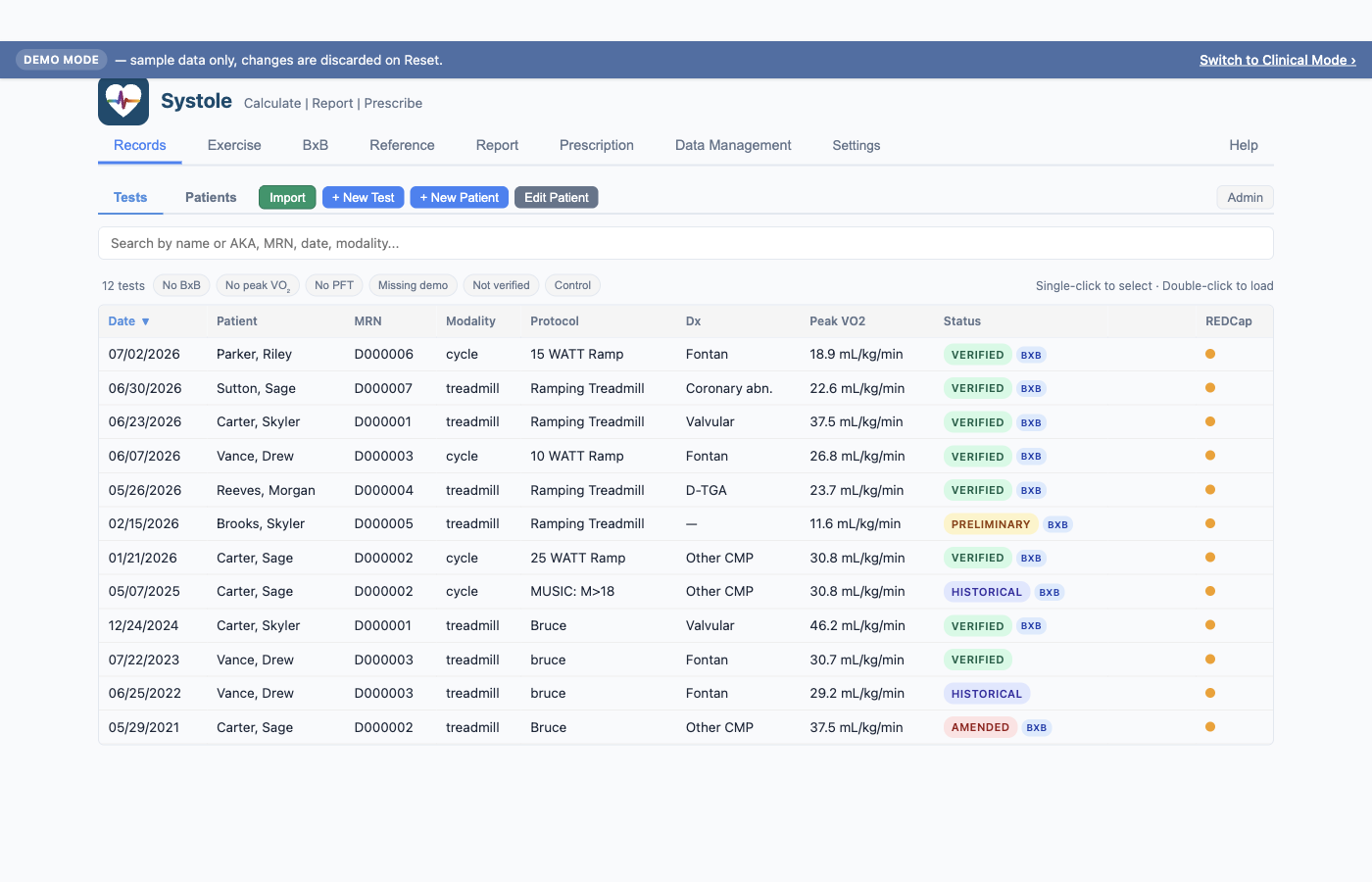
The default view. Shows every exercise test in the database as a sortable table:
| Column | Description |
|---|---|
| Date | Date of service |
| Patient | Last name, first name |
| MRN | Medical record number |
| Modality | Cycle, treadmill, recumbent cycle, or other |
| Protocol | Exercise protocol used |
| Peak VO₂ | Observed peak oxygen consumption (mL/kg/min) |
| Status | Preliminary, Verified, Historical, or Ammendment in process |
| REDCap | Export status indicator (dot: green = exported, empty = not exported) |
Each row also has an inline Profile action button — click it to jump to that patient's record in the Patients sub-tab.
Actions:
Above the Tests table, filter chips quickly narrow the list to tests with data quality concerns:
Click a chip to toggle the filter. Multiple chips can be active simultaneously (intersection). The chips combine with the search box.
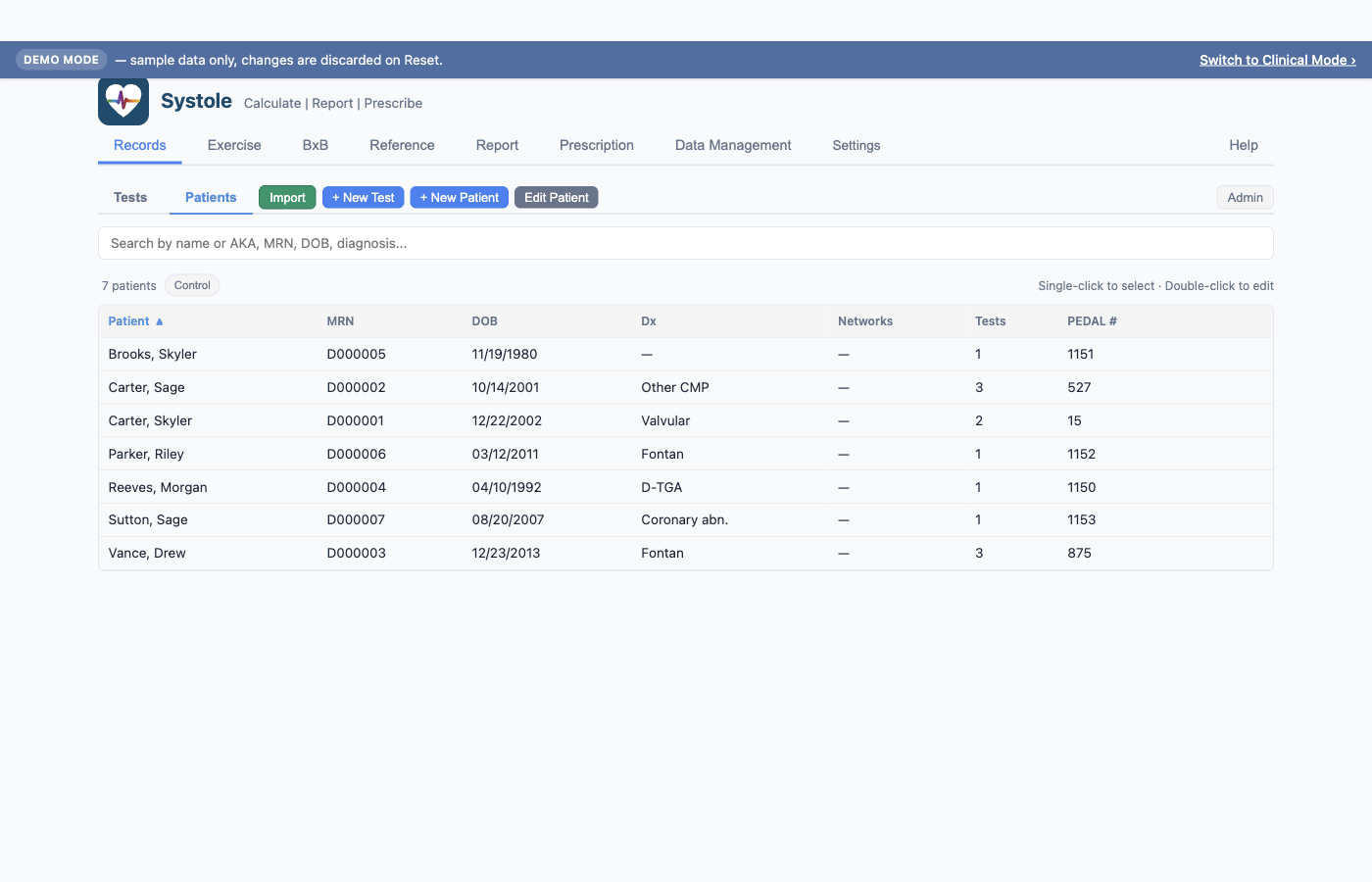
Lists all patients in the database:
| Column | Description |
|---|---|
| Patient | Last name, first name |
| MRN | Medical record number |
| DOB | Date of birth |
| Dx | Diagnosis |
| Networks | CNU network membership tags (ACTION, NPC-QIC, FON, PC4 Family, SV-ONE) |
| Tests | Number of exercise tests on file |
| PEDAL # | Assigned PEDAL patient ID |
Each row has an inline View Tests action button — click to filter the Tests sub-tab to that patient.
Actions:
The Patients search box also matches by diagnosis
label — typing TOF, Fontan, or
HCM filters to patients whose diagnosis column displays
that label.
This sub-tab appears only when there are items in the review queue. During bulk import, Systole may flag:
Each flagged item shows an expandable detail row for comparison and inline action buttons. A Discard All button at the top right of the Review pane clears the entire queue at once after confirmation.
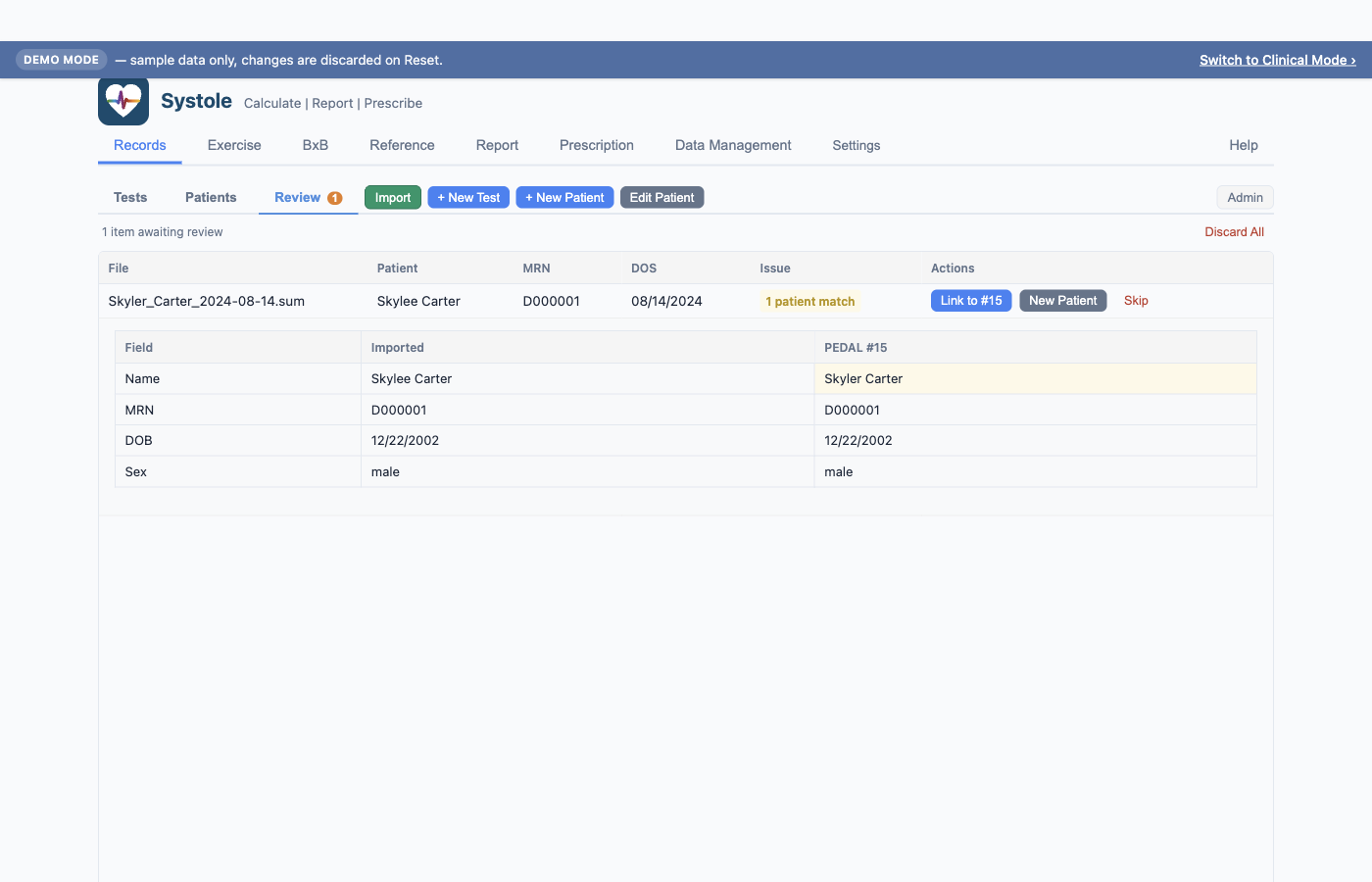
Click anywhere on a review row (other than a button) to expand the comparison. Fields that differ from the matched patient are highlighted — in the example above, only the Name differs; MRN, date of birth, and sex all agree, which is the signature of a spelling variant rather than a different person.
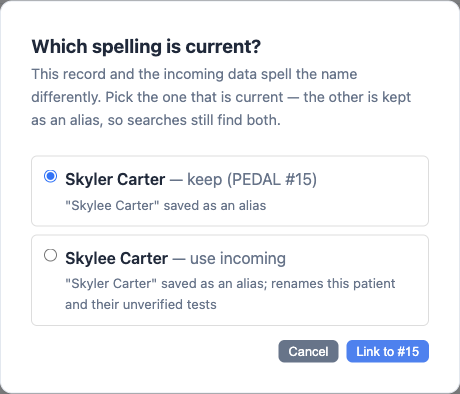
When you click Link to #N and the incoming name differs from the patient on file, Systole asks which spelling is current before merging:
| Choice | What happens |
|---|---|
| Keep (the name in Records) | The patient record is unchanged. The incoming spelling is saved as an alias. |
| Use incoming | The incoming spelling becomes the patient's name. The previous name is saved as an alias, and the new spelling is written to that patient's existing tests. |
Neither spelling is ever lost — whichever you don't choose becomes an alias, and the Records search matches aliases on both the Tests and Patients sub-tabs. See Name Aliases below.
This dialog appears only when the names actually differ. If the incoming name matches the record exactly, Link completes in one click.
Two things worth knowing:
The same dialog appears when you save or export a test that isn't yet linked to a patient and Systole finds a near-match — see Import & Export.
Click + New Patient in the sub-tab bar. A modal opens with the following fields:
| Field | Required | Notes |
|---|---|---|
| MRN | Yes | Must be unique in the database |
| First Name / Last Name | Yes | |
| Date of Birth | Yes | Used for age calculation |
| Sex | Yes | Male or Female |
| Race | No | White / Caucasian, Black / African American, Native American, Asian, Pacific Islander / Hawaiian, Other (reveals a description field), Unknown. Leaving it on "Select…" exports blank; Unknown is a recorded answer |
| Hispanic/Latino | No | Yes / No, with nothing preselected — see below. Used by some prediction equations |
| Gender | No | Cisgender, Transgender, or Other (reveals a description field); separate from biological sex |
| Diagnosis | No | Structured 18-option dropdown (Single ventricle, Fontan, TOF, HCM, AVSD, etc.). Some selections reveal follow-up fields — Fontan asks for ventricular morphology and fenestration status; TOF asks for repair status; CAA asks for type. "Other" reveals a free-text description. |
| PC4 Code | No | Pediatric Cardiac Critical Care Consortium diagnosis code |
| CNU Network IDs | No | Collaborating network memberships — ACTION, NPC-QIC, FON, PC4 Family, SV-ONE — each with its own sub-ID field that appears when that network's checkbox is checked |
The PEDAL Patient ID is assigned automatically by the database and shown read-only at the end of the identity row.
Hispanic / Latino has three states, not two: Yes,
No, and unanswered. Nothing is preselected, and a
Clear link beside the radios returns the field to
unanswered after a mis-click. This matters at export time — an
unanswered field exports to REDCap as 99, Unknown, whereas
No is a positive assertion that the patient is not
Hispanic/Latino. Record what you actually know.
Ethnicity was a two-state checkbox before v1.0.2, so patients who were never asked were stored, and exported, as No. Those existing rows are indistinguishable from real "No" answers and continue to export as
2— only newly-entered or re-edited patients can carry "unanswered". If a site needs the distinction on historical patients, they have to be re-entered deliberately.
Race behaves the same way: Unknown is a recorded
answer that exports race___99, while leaving the dropdown
on "Select…" exports blank.
Select a patient and click Edit Patient, or double-click a patient row in the Patients sub-tab. The same modal opens with current values populated. Changes are saved when you click Save.
Patient-level data (name, MRN, DOB, sex, race) is stored separately from test-level data. Editing any of it updates that patient's preliminary, amended, and historical tests immediately, so a corrected spelling or MRN propagates without visiting each test.
Verified tests are not rewritten silently. A verified test is a clinically signed-off record — and because sex and race feed the normative prediction equations, quietly changing them would change the reported numbers underneath a signed report. So when a patient edit would touch verified tests, Systole saves the patient record, then lists the verified tests that kept the old values and offers to amend them. Amending asks for a reason and records it in each test's history, exactly like the Amend button on the test itself. Declining is a valid answer: the patient record is corrected and the verified tests keep what was actually reported.
Diagnosis is deliberately excluded from this propagation — each test carries its own dated diagnosis snapshot. See Diagnosis on this test.
Calibration runs and biologic-control tests are not patients, but bulk and folder imports pull them in alongside real tests. Tick Test / biologic control subject in the PEDAL Registry section of the patient modal to mark the subject as a control. The flag applies to all of that subject's tests:
.pedal file for one of their tests asks
first; saving the test to the registry is unaffected.record_status = 3) so the coordinating center can
remove it. See Correcting
a test exported under the wrong patient; these rows use the same
Confirm / Reject flow.Unticking the flag withdraws any delete request that has not been exported yet. A request that already went out stays with the coordinating center; if that was a mistake, tell them.
When a patient's name is spelled differently in an imported file (e.g., "Johnn Smith" vs "John Smith") and you resolve the mismatch in the Review queue, the spelling you didn't pick as the current one is saved as an alias. Future imports with that name+MRN combination auto-match without going to review.
Aliases appear as removable tags in the patient edit modal under Also Known As. Click the × on any alias to remove it — future imports with that name will go to review again.
Aliases are also searchable. Typing an old or alternate spelling into
the search box on either the Tests or Patients sub-tab finds the
patient, and the Patient column appends aka <alias>
so it's clear why the row matched. This is what makes it safe to correct
a misspelled record: the wrong spelling still finds the patient
afterward, so a colleague searching the name they remember isn't left
thinking the record is missing.
A name change is not a merge. Aliases record the same person under a different spelling. If two separate patient records exist for one person, changing a name won't combine them — currently the only way to consolidate is Admin mode's Reassign (move the tests to the surviving record, then delete the empty one). A dedicated merge action is planned.
Both the Tests and Patients tables support full-text search. Type in the search box to filter by any visible column. The search handles multiple formats (examples shown using the bundled demo data):
Carter, Skyler (last, first)Skyler Carter (first last)D000001 (MRN)cart matches both Carter, Skyler
and Carter, Sage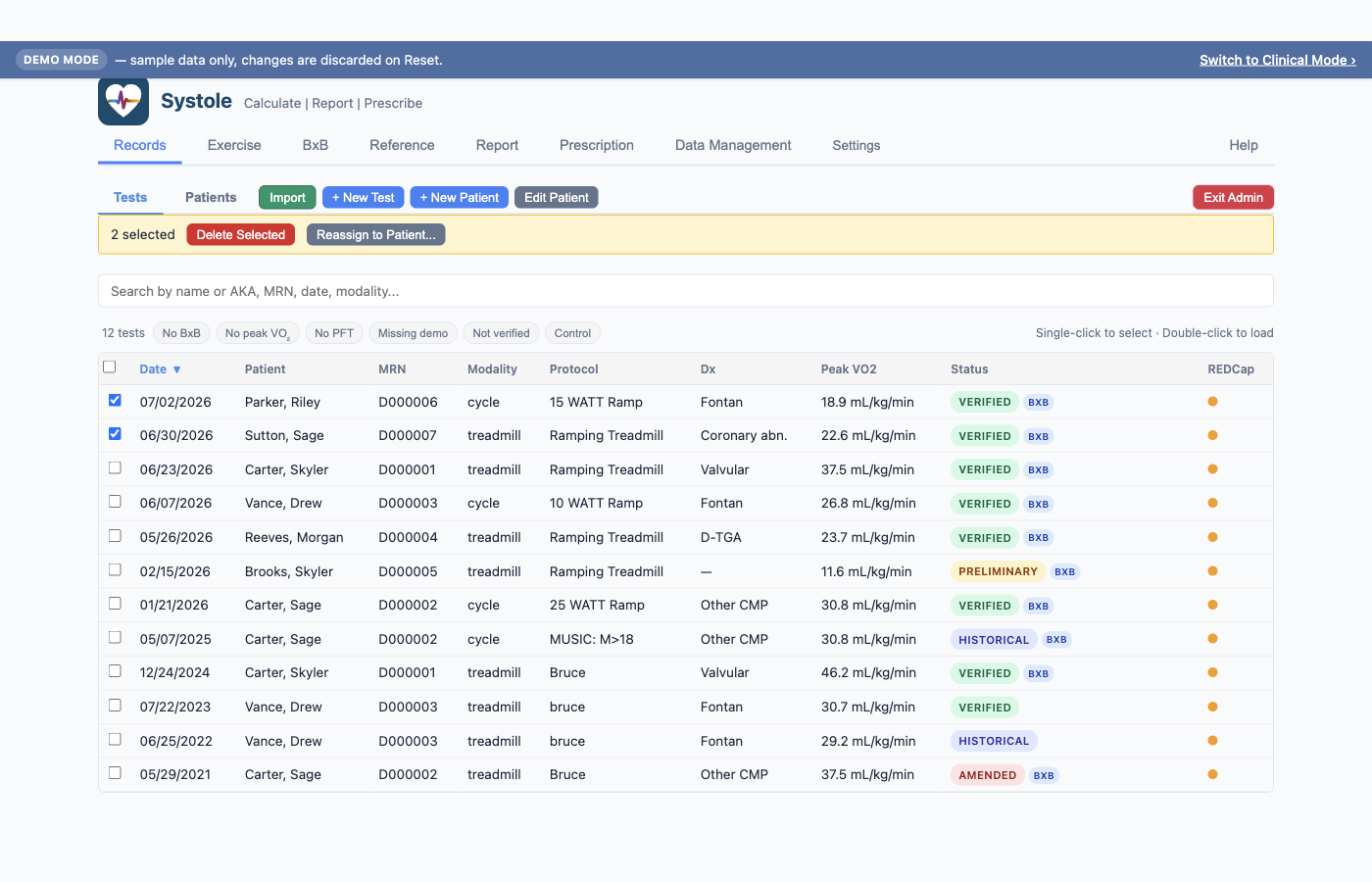
Warning — Admin mode actions are not reversible. Delete Selected permanently removes the chosen rows from the database; deleting a patient cascades to all of their tests and breath-by-breath data. Reassign to Patient rewrites the patient linkage on each selected test and cannot be undone from within the app. Before performing bulk operations, take a manual backup (Settings → Database Management → Export Database) or rely on your most recent auto-backup. There is no in-app undo.
The Admin button on the right side of the Records sub-tab bar enables admin mode for bulk operations. Click Admin and confirm — the button turns red and relabels to Exit Admin to indicate admin mode is active. While active:
Reassigning a test that was already exported to REDCap. Because a test's REDCap record ID encodes its patient and visit, moving the test to a different patient leaves the original REDCap record orphaned (a CSV import can't delete a REDCap record). Systole handles this for you: reassigning a confirmed-exported test queues a superseded record, and your next REDCap export includes a row that flags the old record for your coordinator to remove. A toast confirms when one is queued. See Import & Export → Superseded records.
Click Exit Admin to leave admin mode. Selections clear when leaving admin mode.