← Import and Export · Home · Exporting to REDCap →
Site-level configuration is split between two tabs:
This split exists because Site ID and Protocol Mappings are tightly coupled to the REDCap export workflow that lives on the Data Management tab.
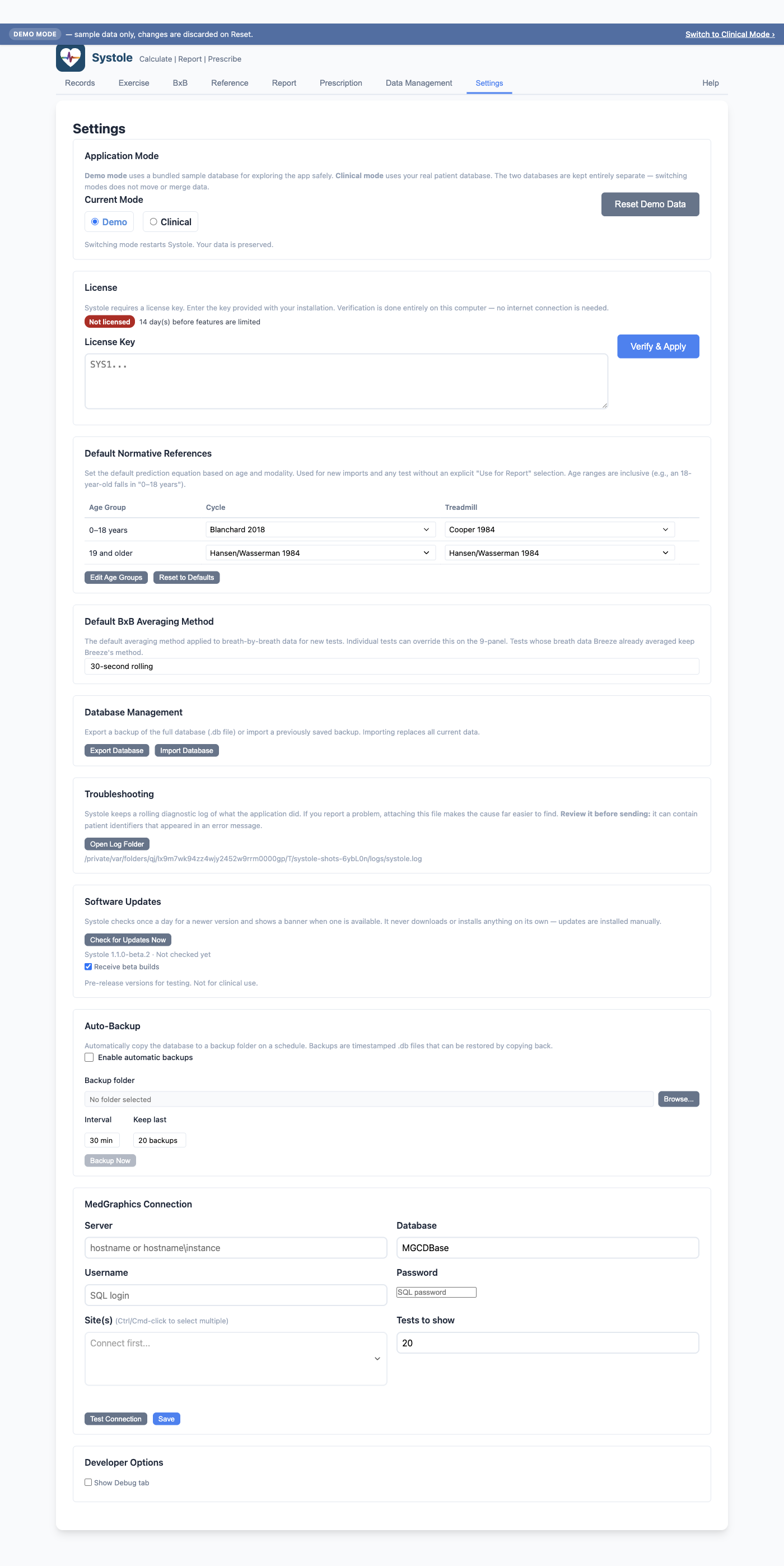
The first section of the Settings tab. Systole maintains two completely separate databases:
| Mode | Database | Purpose |
|---|---|---|
| Clinical | pedal.db |
Your real patient data |
| Demo | demo.db |
A bundled fictional sample for exploration and training |
Switching mode triggers a confirmation and restarts Systole. Your data is preserved in both databases — switching does not move or merge records.
In Demo mode a Reset Demo Data button appears. Clicking it deletes all changes you made to demo data and restores the bundled seed on the next launch. This button is hidden in Clinical mode.
A persistent informational banner at the top of the app indicates when you are in Demo mode, with a "Switch to Clinical Mode" link that jumps to this Settings section.
Your PEDAL Site ID is assigned by the PEDAL coordinating center and identifies your institution in the PEDAL REDCap database. Enter it under Data Management → Site Configuration → PEDAL Site ID and click Save Site ID.
The Site ID becomes the prefix for all REDCap record IDs, which take
the form SITE-PEDALID-VISIT. For example, with Site ID
396, a patient's PEDAL number 4567, and visit
1, the REDCap record ID is 396-4567-1.
This must be configured before any REDCap exports.
Some institutions use zero-padded MRNs (e.g., 045496181
— 9 digits). Older records or data from external systems may lack the
leading zeros (45496181). Set the MRN Digit
Length in the Site Configuration section to automatically pad
shorter MRNs with leading zeros during import and patient matching.
45496181 is
stored and matched as 045496181When set, padding is applied when:
Existing records are not retroactively padded — only new imports and edits are affected. When normalization is active, lookups also fall back to a stripped-zero comparison so legacy unpadded data still matches.
Click Save in the MRN field row to apply changes.
Exercise protocols in Breeze (and other CPET software) are stored as free-text names (e.g., "Godfrey Cycle 10W/min"). REDCap requires these to be translated to numeric codes. The protocol mapping table handles this translation.
Unmapped protocols are highlighted in red and will be flagged during REDCap export.
Controls which prediction equation is applied by default when a test does not have an explicitly selected reference. Organized by age group and modality.
The table is fully editable: click the dropdown in any cell to change the equation. Click Edit Age Groups to adjust the age boundaries. Click Reset to Defaults to restore the original configuration.
A typical configuration:
| Cycle | Treadmill | |
|---|---|---|
| Pediatric (0–18) | Blanchard | Cooper |
| Adult (19+) | Wasserman | Wasserman |
Defaults are resolved at display time — changing the default immediately affects any preliminary or amended test without an explicit selection. Verified tests are not affected: when a test is verified, whichever reference was displayed at that moment is snapshotted into the test record, so the verified clinical interpretation can't drift if the site default is changed later. To change the reference on a verified test, the user must Amend it first.
Controls the averaging method used when computing summary values from breath-by-breath data for new tests. Default is 30-second rolling.
Options: 10s, 15s, 20s, 30s, 8-breath mean, Middle 5 of 7, Raw (no averaging).
Individual tests can override this on the BxB tab using the averaging speed buttons and Apply Changes to Test.
Changing the default does not change existing tests by itself. When
preliminary tests would be affected, an Apply
Systole is licensed per site. Paste the key supplied by the coordinating center into License Key and click Verify & Apply; the status badge changes to Licensed.
.db file.db file, replacing all current data. A confirmation dialog
shows the current patient/test counts before proceeding.Use this for backup and restore when moving between machines or
recovering from data loss. Note: Import affects the database for the
current mode only — importing while in Demo mode replaces
demo.db, not pedal.db.
Available in the Systole desktop application:
| Setting | Options |
|---|---|
| Enable backups | Checkbox |
| Backup folder | Browse... to pick a local directory |
| Interval | 5, 15, 30, 60, or 120 minutes |
| Keep last | 10, 20, 50, or 100 backups |
Click Backup Now to create an immediate backup.
The keep-last budget is split evenly between recent and daily history:
For example, with Keep last = 20 and Interval = 30 min:
Days with no backups (weekends, days off) are skipped — the daily slots stretch back as far as needed to fill the budget.
Configures direct read-only connection to a BreezeSuite MedGraphics SQL Server database. Once configured, Systole adds MedGraphics import buttons on the Records sub-tab bar and on the Data Management bulk import section. See Import and Export for the import workflow.
| Field | Notes |
|---|---|
| Server | Hostname or hostname\instance |
| Database | Defaults to MGCDBase |
| Username / Password | SQL credentials. Password is encrypted with Electron's safeStorage. |
| Sites | Multi-select pulled from the dbo.Site table after a
successful connection test |
| Tests to show | 5–200, controls how many recent tests appear in the picker |
Click Test Connection to validate, then Save to persist. The MedGraphics import buttons appear after a successful save.
Until a connection is saved and tested, this panel is informational-only; the import buttons stay hidden.
Systole keeps a rolling record of what the application did — startup, database activity, imports, exports, and any error it hit. If something misbehaves, this file is what makes the cause findable.
systole.log (current) and
systole.log.1 (previous). Each is capped at 2 MB, so the
log never grows without bound.Before sending a log, open it and read it. Error messages sometimes quote the value that caused them, so a log can contain patient identifiers. Remove anything identifying, or describe the problem without the file, if in doubt.
If the application window ever closes unexpectedly, Systole shows a message naming this log path. Your data is in the database and is not lost — restart the app and attach the log to the report.
Systole checks the releases page for a newer version about once a day and shows a green banner at the top of the window when one is available. It never downloads or installs anything on its own — updates are installed by hand from the releases page.