← Site Configuration · Home · Bulk Import in Depth →
This page is the start-to-finish procedure for exporting your exercise tests to the PEDAL Network Data Registry in REDCap. Follow it in order: the two prerequisites (Site ID and protocol mappings) must be in place before your first export, and the export → confirm handshake keeps Systole and REDCap in sync afterward.
Everything here happens on the Data Management tab. For field-level reference on import formats, .pedal export, and the export dialog's status gates, see Import and Export; for how the underlying settings work, see Site Configuration.
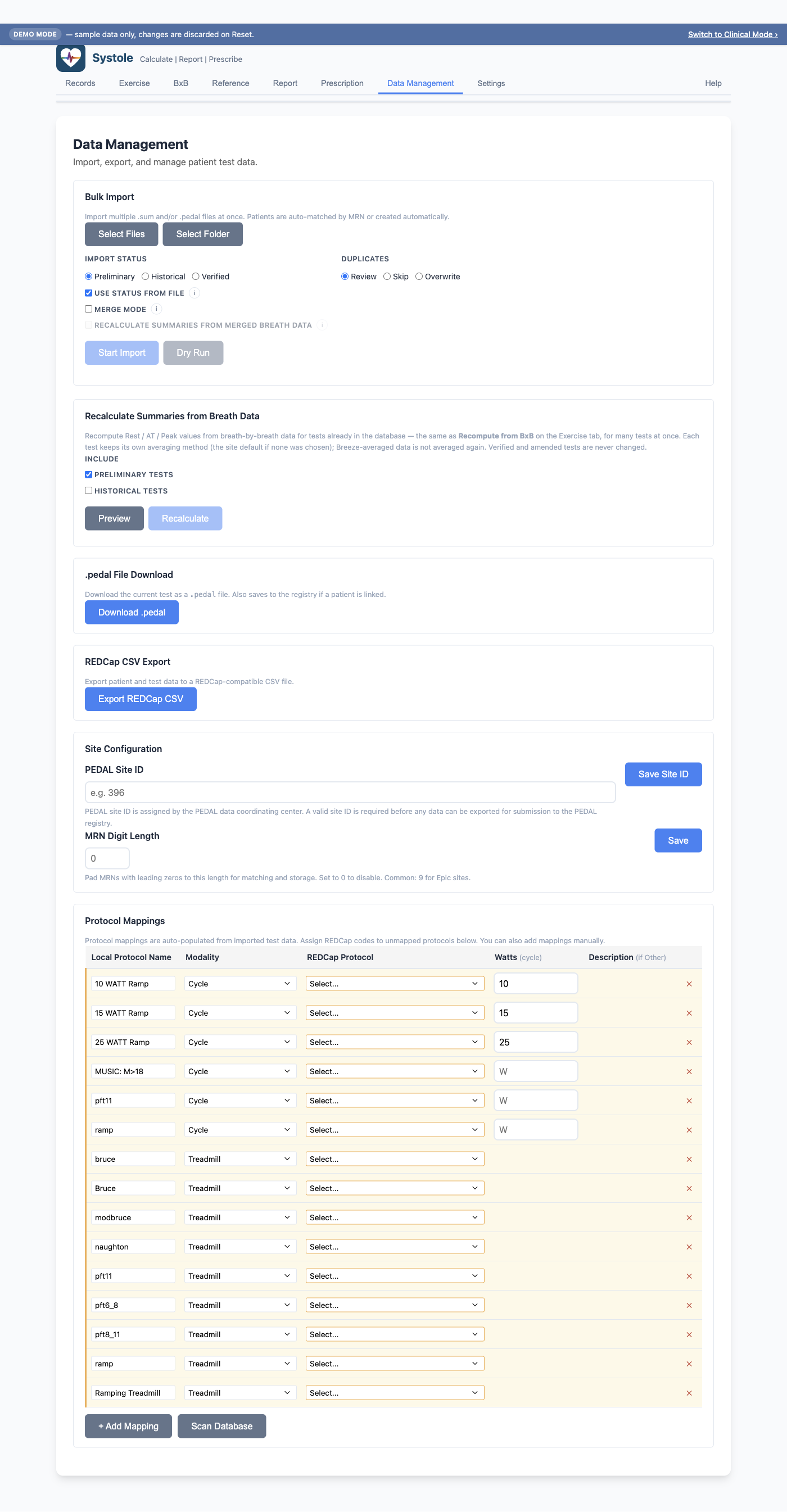
REDCap export is gated on two configurations. If either is missing, Systole blocks the export and tells you why. Set both up once and they persist.
Your Site ID is assigned by the PEDAL coordinating center and identifies your institution in the REDCap database.
The Site ID becomes the prefix of every REDCap record ID. With Site
ID 396, patient PEDAL number 4567, visit
1, the record ID is 396-4567-1. Without a Site
ID, record IDs can't be generated and export is
blocked.
Tip: If your MRNs are zero-padded (e.g.
045496181), also set MRN Digit Length in this section so imported tests match existing patients correctly. See Site Configuration → MRN Digit Length.
REDCap stores protocols as numeric codes, but Breeze and other CPET software record them as free-text names (e.g. "Godfrey Cycle 10W/min"). Every protocol used by a test you plan to export must have a mapping, or that test can't be exported.
Unmapped protocols are highlighted in red and will block export until mapped. It's worth clicking Scan Database again after any large import to catch protocol names you hadn't seen before.
Checklist before exporting: Site ID saved ✓ · every protocol in the mappings table has a code (nothing red) ✓
Upgrading from a pre-1.0.2 database: "Other" is now REDCap's code 88 for protocols, matching every other coded field. Any protocol previously mapped to the old placeholder — treadmill 33, cycle/recumbent 20 — is converted automatically on first launch and will read back as 88 – Other. Treadmill 20 is CMH Max, a real protocol, and is left alone. Nothing in REDCap changes and no test is flagged for re-export: these rows already uploaded as 88.
Once the prerequisites are in place, exporting is a repeatable cycle. The normal rhythm is: export the new tests since last time → import that CSV into REDCap → confirm the batch in Systole.
On the Data Management tab, in the REDCap CSV Export section, click Export REDCap CSV to open the export dialog (titled "Export to REDCap").
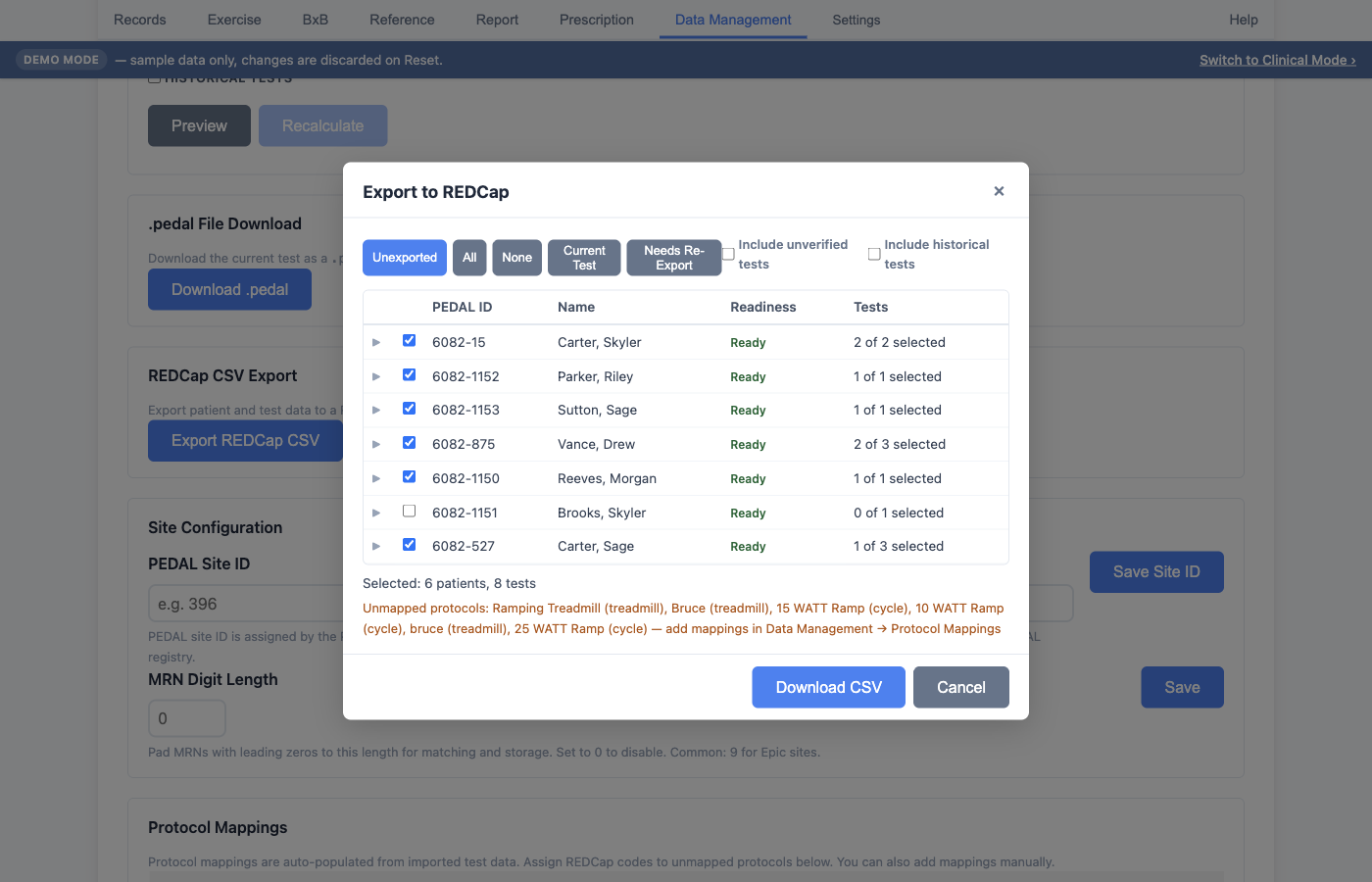
Use the quick-select buttons to build a selection, then fine-tune by ticking individual rows in the table:
| Button | Selects |
|---|---|
| Unexported | Every test not yet confirmed-exported — the normal day-to-day workflow (new data since your last upload) |
| All | Every test in the database — use for the very first upload or a full re-sync |
| None | Clears the selection |
| Current Test | Only the test currently loaded in the app |
| Needs Re-Export | Already-uploaded tests whose registry row no longer matches what Systole would send today — see Keeping REDCap in step |
Status gates. By default only Verified tests export. Two independent checkboxes widen the net:
| Test status | Default | To include |
|---|---|---|
| Verified | Always exports | — |
| Preliminary / Amended | Excluded | Include unverified tests |
| Historical | Excluded | Include historical tests |
A site still migrating legacy data can leave Include historical tests on; the choices persist between sessions. Gated tests show a pill in the table (yellow Unverified, purple Historical) so you can see what a checkbox is pulling in.
Click Download CSV. Systole writes one row per exercise test (the PEDAL registry is a single flat form — each row carries that test's demographics alongside its CPET values) and marks every included record as pending (not yet confirmed).
You never type the identifiers — each row's record_id
(SITE-PEDALID-VISIT), patient_id
(SITE-PEDALID), and site_code (the numeric
site ID) are generated automatically.
Upload the downloaded CSV using REDCap's Data Import Tool. Out-of-range values are flagged by REDCap but do not block the import — the import proceeds and the flags are a data-quality prompt, not a rejection. (Systole also flags out-of-range entries with a soft amber warning at data-entry time, so most typos are caught before they ever reach REDCap.)
Come back to Systole and reopen the export dialog. A banner at the top shows the pending batch:
Starting a new export while a batch is still pending prompts you to resolve the previous one first — this is what keeps Systole's record of "what's in REDCap" honest.
Confirming a batch used to mean only "the upload succeeded" — nothing recorded what was uploaded. So when a defect was fixed, a mapping was edited, or a value was corrected after the fact, working out which registry rows had gone stale meant guessing from export dates.
Systole now keeps a local export ledger: the exact row it sent for each test. Every time you open the export dialog it rebuilds each exported test's row and compares it to the stored one. Anything that differs is flagged.
The pill has three forms, because the fix is different in each case:
| Pill | What it means | What to do |
|---|---|---|
| Re-export (n) | n value columns differ from what was sent | Re-upload normally — the import overwrites the stale cells |
| Blank in REDCap (n) | The corrected value is now blank, and REDCap's standard import does not overwrite an existing value with a blank | Enter the correct value in Systole first, or use REDCap's explicit blank-overwrite option. A plain re-upload leaves the old wrong value in place |
| Record moved | An identity column changed (record ID, patient ID, site) | Do not just re-upload — that creates a second record instead of correcting the first. See superseded records |
A confirmed-exported test with no snapshot on file — exported by a build older than this feature, or restored from an older backup — shows No snapshot and reads as unknown, never as clean.
The ledger never leaves the machine. It is a local record of what Systole sent, not an audit trail in REDCap; REDCap itself still carries only the status flag.
If you reassign an already-exported test to a
different patient (Records → Admin Mode — see Patient
Records → Admin Mode), its record ID legitimately changes, because
the patient number is baked into the ID (396-4567-1 →
396-4571-1). Systole re-submits the corrected test under
the new ID, but the old record still sits in REDCap
holding that data under the wrong patient — and a CSV import can only
insert or update by record ID, never delete.
Systole handles this for you:
record_id with record_status = 2
(Superseded).The superseded row lets your PEDAL registry coordinator find and retract the orphaned record at the coordinating center. You never build these rows by hand.
Control subjects use the same mechanism. Marking a
patient as a test /
biologic control subject queues one row per already-submitted test
with record_status = 3 (Delete requested): unlike
a superseded record, there is no corrected row elsewhere, and the
coordinating center should delete it. The pending banner counts both
kinds together as superseded or delete-requested records.
Coordinating-center note: for superseded rows to work, the REDCap project's import must not be set to "overwrite existing values with blank." A superseded row is intentionally blank except for its status flag; with overwrite-blank on, it would wipe the orphan's data instead of just marking it. This is a one-time REDCap project setting owned by the coordinating center, not something a site configures in Systole.
| Symptom | Cause | Fix |
|---|---|---|
| Export button blocked / "Site ID required" | No Site ID saved | Enter and Save Site ID under Site Configuration |
| A test won't export; protocol shows red | Unmapped protocol | Map it under Protocol Mappings (Scan Database, set modality + code) |
| A test you expected isn't in the selection | It's Preliminary/Amended or Historical | Tick Include unverified tests and/or Include historical tests |
| Next "Unexported" export re-lists tests you already uploaded | Batch was never confirmed | Reopen the dialog and click Confirm on the pending banner |
| REDCap flags out-of-range values on import | Data-quality flag, non-blocking | Import proceeds; review flagged values in REDCap or correct at the source in Systole |
| Confirmed-exported tests carry a Re-export pill | Their registry row no longer matches what Systole would send | Click Needs Re-Export and re-upload — but read the pill first; Blank in REDCap and Record moved need different handling |
| A test shows No snapshot | Exported before Systole recorded what it sent | Nothing is wrong; its row simply can't be checked. Re-exporting it records a snapshot going forward |