← Patient Records · Home · Breath-by-Breath Tab →
The Exercise tab is where all cardiopulmonary exercise test data is entered, reviewed, and edited. Data can be entered manually or auto-populated from an imported file.
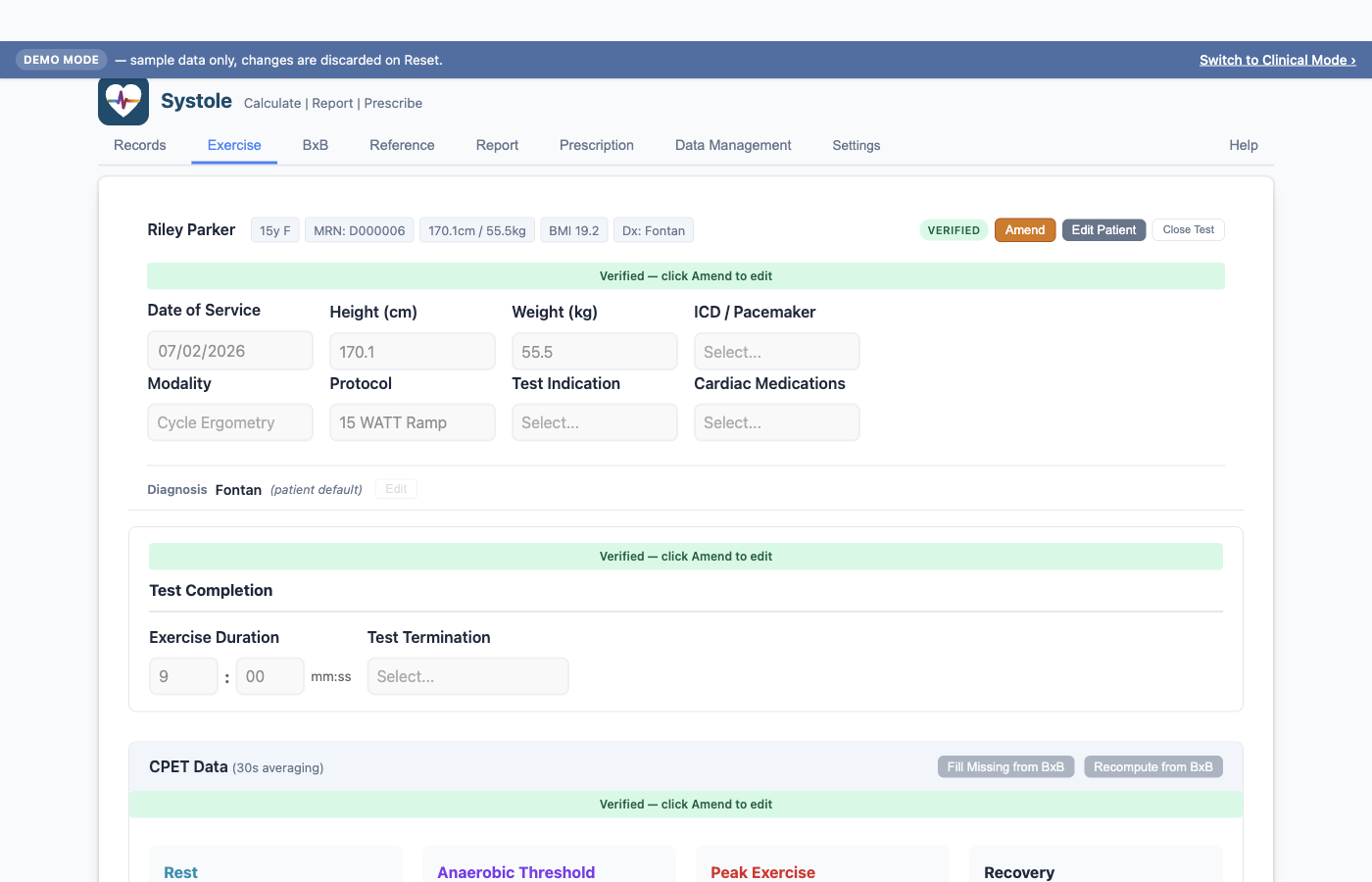
When a test is loaded (or a new test is started), the top of the Exercise tab shows:
Demographics Summary Bar — A two-row banner at the top of the test view:
To the right of the chips: a status badge (Preliminary / Verified / Historical), then Verify or Amend, Edit Patient, and Close Test buttons. Click Edit Patient to modify patient-level fields (name, MRN, DOB, sex, race, diagnosis, CNU network IDs). Click Close Test to return to Records without losing data.
Test Metadata Section — Editable fields for the current test session:
| Field | Description |
|---|---|
| Date of Service | Date the test was performed |
| Height (cm) | Used for predicted VO₂ calculations |
| Weight (kg) | Used for relative VO₂ and BMI |
| Modality | Cycle ergometry, treadmill, recumbent cycle, or other |
| Protocol | Exercise protocol (free text — mapped to REDCap codes on the Data Management tab) |
| Test Indication | Surveillance / Functional / Risk screening, Symptom reproduction / provocation, or Other (free-text follow-up appears when Other is selected) |
| ICD / Pacemaker | None, pacemaker only, ICD only, or both. Filled in automatically from the patient's last visit that recorded an answer — see Values carried forward from an earlier visit |
| Cardiac Medications | Yes / No. Choosing Yes reveals a medication-class checklist (Beta blocker, ACE inhibitor / ARB, Antiarrhythmic, Pulmonary vasodilator, Advanced heart failure, Other → free text) |
| Diagnosis | The diagnosis that applied on this test date, shown as a one-line chip with an Edit button — see Diagnosis on this test |
Height and weight are entered per test because patients (especially pediatric) may have different measurements at each visit.
The Diagnosis chip at the bottom of the Test Metadata section shows the diagnosis that applied on this visit's date, which is not necessarily the patient's diagnosis today. Click Edit to open the Diagnosis for this test dialog — the same structured fields as the patient modal (primary diagnosis plus any follow-ups: Fontan ventricular morphology and fenestration status, TOF repair status, CAA type, or an "Other" description).
Editing here changes only this test. The patient's current/default diagnosis — the one shown in Records and used to seed new tests — is edited from Records via Edit Patient.
Why the two are separate: a patient whose Fontan circulation is later replaced by a transplant should not have their 2020 test retroactively relabelled as a transplant patient. Each test keeps a dated snapshot of what was true that day, and REDCap export uses that snapshot.
When a test's diagnosis was inherited rather than entered on that visit, the chip reads (carried forward). The label disappears once you set the diagnosis explicitly.
On a verified test the Edit button is locked along with the rest of the test — click Amend first.
Two fields fill themselves in from the patient's history rather than being re-entered every visit: ICD / Pacemaker and Diagnosis. Both show a small (carried forward) note while the value came from somewhere other than this visit.
Observed CPET values are organized in a four-column layout by exercise phase:
| Field | Units |
|---|---|
| VO₂ | mL/min |
| Heart Rate | bpm |
| SpO₂ | % |
| Blood Pressure | mmHg (SBP/DBP) |
| Respiratory Rate | breaths/min |
| RER | ratio |
| VCO₂ | mL/min |
| VE | L/min |
| VD/VT | ratio |
Pre-exercise spirometry (if performed): FEV₁, FVC,
FEF 25-75%, plus ATS Grade (e.g., AA) and
ATS Codes (e.g., BR1R2) per ATS/ERS 2019
acceptability criteria.
| Field | Units |
|---|---|
| VO₂ | mL/min |
| Heart Rate | bpm |
| SpO₂ | % |
| Blood Pressure | mmHg |
| Workload | watts |
| VCO₂ | mL/min |
| VE | L/min |
| VE/VCO₂ Slope | ratio |
All fields from Rest and AT, plus:
| Field | Units |
|---|---|
| Workload | watts |
| RER | ratio |
| VE/VCO₂ Slope | ratio |
| Field | Units |
|---|---|
| Heart Rate at 1 minute | bpm |
| SpO₂ at 1 minute | % |
| Blood Pressure at 2-5 minutes | mmHg |
Post-exercise spirometry (2-5 min): FEV₁, FVC, FEF 25-75%, plus post ATS Grade and ATS Codes.
Several fields compute automatically as you enter data:
You do not need to enter these manually. They update in real time.
At the bottom of the CPET data section:
12 min 34 sec). Stored
internally as total seconds.Structured data entry for exercise ECG findings:
These findings feed into the auto-generated clinical impression on the Report tab.
When a test has breath-by-breath data, two buttons appear in the CPET Data section header. Both derive 20+ summary variables (VO₂, HR, VE, VCO₂, VE/VCO₂ slope, etc.) from the BxB stream using the test's averaging method (the site default unless one was chosen for the test):
If Breeze already averaged the breath data (a .sum
exported with any method other than Unaveraged), both buttons
use the rows as exported — they are never averaged a second time — and
the header reads, for example, (30s averaging by Breeze).
Both buttons are locked on a verified test; click Amend first.
To recompute many tests at once, use Data Management → Recalculate Summaries from Breath Data (Preliminary and Historical tests, with a preview first), or turn on Recalculate summaries from merged breath data when merging breath data in Bulk Import — see Bulk Import in Depth.
Timing held from a merge. When breath-by-breath data is merged onto a verified test (bulk Merge Mode, the Review queue's Merge, or MedGraphics' missing-breath-data retrieval), the file's exercise/recovery markers and AT time are held, not applied — a blank AT on a verified test may be the reader's decision that no AT could be determined, and nothing should overturn that silently. The held timing takes effect the first time you click either button during an amendment.
Systole auto-saves your work continuously. If the application closes unexpectedly, a recovery banner appears when you reopen it offering to load your unsaved draft. Click Load to pick up where you left off, or Dismiss to start fresh. Tests already linked to the registry auto-recover without needing the banner — the banner only appears for unsaved scratch work.
Every test has a status:
| Status | Meaning |
|---|---|
| Preliminary | Data entry in progress or not yet reviewed |
| Verified | Clinician has reviewed and confirmed the data |
| Historical | Legacy test imported from prior database |